

Overview
Mirobody Health can connect to external MCP servers, allowing your AI agents to access thousands of additional tools and resources. This enables capabilities like file system access, GitHub integration, database queries, and much more.The Model Context Protocol (MCP) is an open standard that enables AI assistants to securely connect to external data sources and tools. Learn more at modelcontextprotocol.io.
Adding an MCP Server
Adding custom MCPs to Mirobody Health is incredibly simple through the web interface.1
Navigate to the Drive page
Open your Mirobody Health web interface and go to the Drive page where you manage your MCP connections.
2
Click Add MCP
Click the “Add” button to start adding a new MCP server.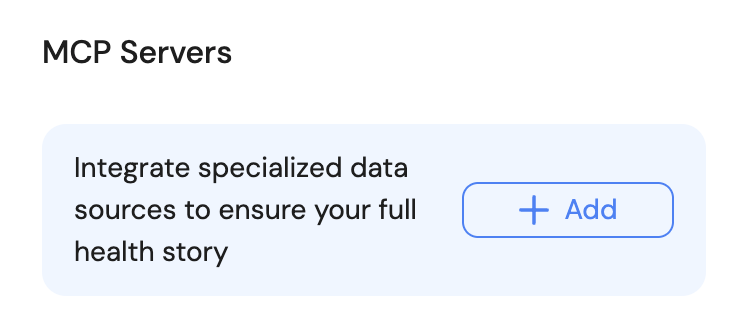
3
Configure MCP details
Fill in the MCP server configuration: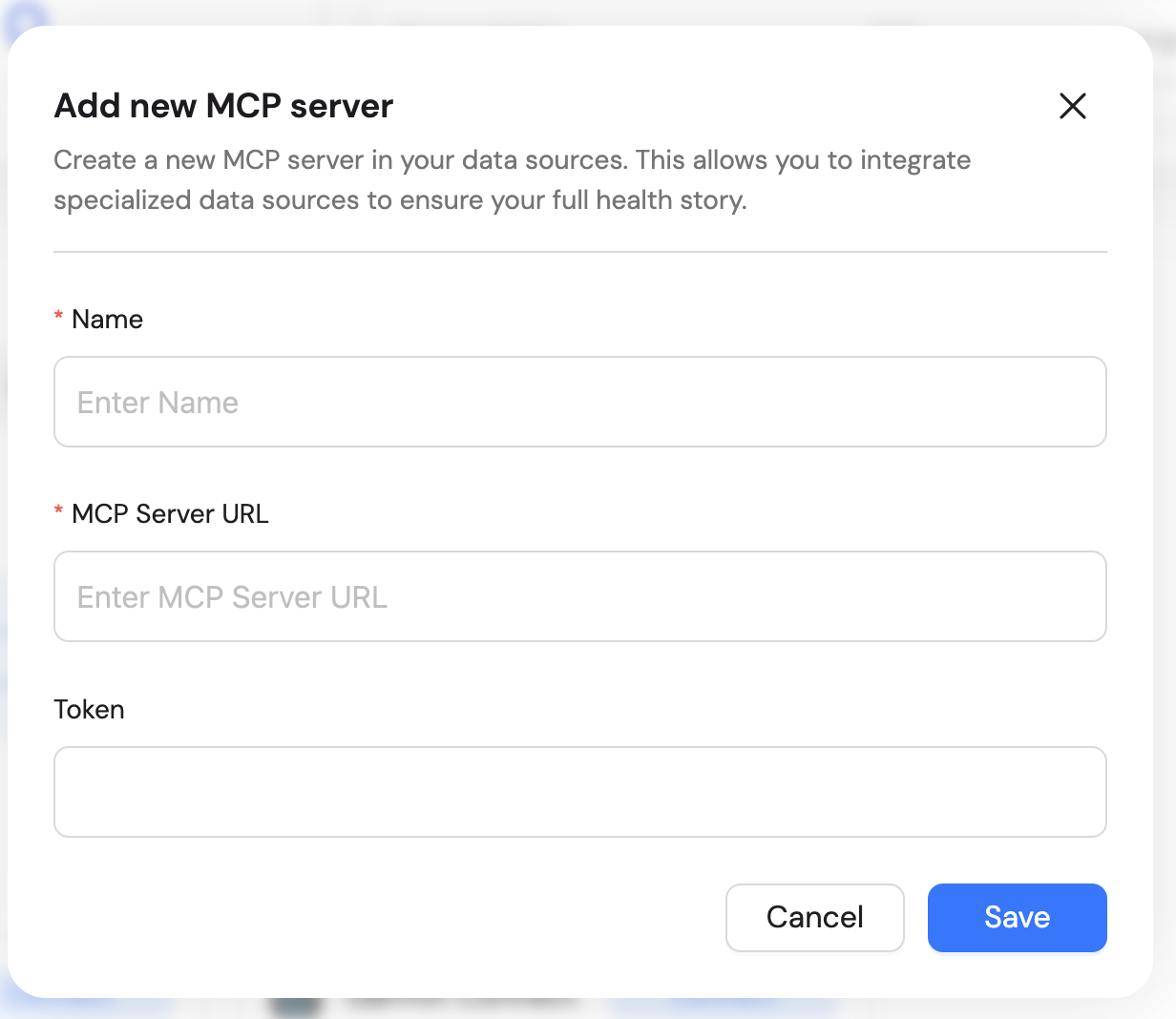
- Name: A friendly name for this MCP server
- Command: The command to run the MCP server (e.g.,
npx,uvx,docker) - Arguments: Command arguments and the MCP package/server path
- Environment Variables: Any required environment variables (API keys, tokens, etc.)
4
Save and connect
Click “Save” to add the MCP server. Mirobody Health will automatically:
- Validate the configuration
- Start the MCP server process
- Register available tools and resources
- Make them available to your AI agents
Your MCP server is now connected and its tools are available to AI agents!