

Overview
ChatGPT Apps extend ChatGPT with custom functionality by talking to an external MCP server. Mirobody runs as an OAuth-enabled HTTP Remote MCP server out of the box — all you need is a public HTTPS URL pointed at your Mirobody instance.Background reading: the official ChatGPT Apps announcement and the Model Context Protocol spec.
How it works
Mirobody’s MCP server is a first-class HTTP service. When you setMCP_PUBLIC_URL in your config, Mirobody advertises that URL as its remote endpoint and accepts MCP traffic over HTTPS at <MCP_PUBLIC_URL>/mcp. ChatGPT (or any remote MCP client) connects there, authenticates via OAuth, and starts calling tools.
Prerequisites
You need a publicly-reachable HTTPS URL that forwards to your Mirobody instance.Make sure Mirobody is running
Local:
http://localhost:18080/mcp should return MCP JSON. Verify with:Choose a public-URL strategy
Option A — quick demo (tunnel from your laptop):Use the resulting HTTPS URL (e.g.
https://abc123.ngrok.io).Option B — production (deploy with your own domain): terminate TLS at a reverse proxy (Caddy / nginx / a managed load balancer) and forward to your Mirobody container.Creating a ChatGPT App
OnceMCP_PUBLIC_URL is set and your tunnel/domain is reachable, register the app in ChatGPT:
Access ChatGPT Apps
Open ChatGPT and navigate to the Apps section. You’ll see your existing apps and the option to create new ones.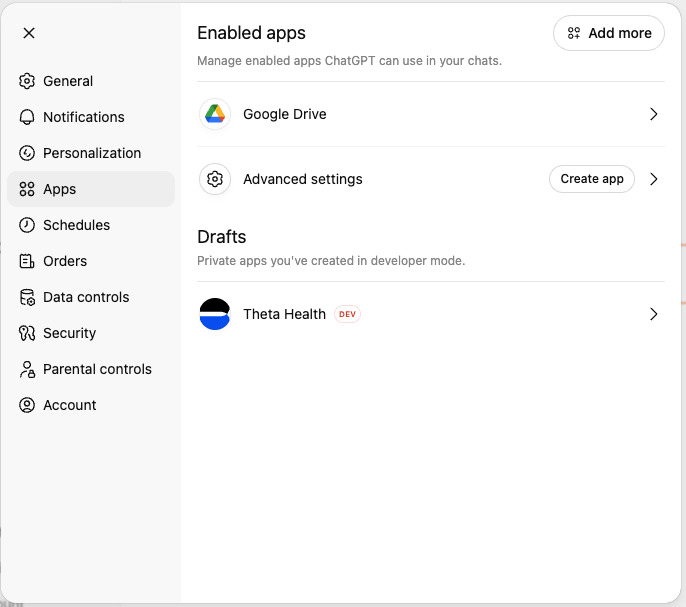
Enable Developer Mode
Click on “Create your own” or access Developer Mode to start building a custom app. This will open the app creation interface where you can configure your Mirobody connection.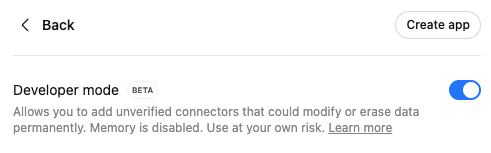
Add your MCP endpoint
In the app configuration: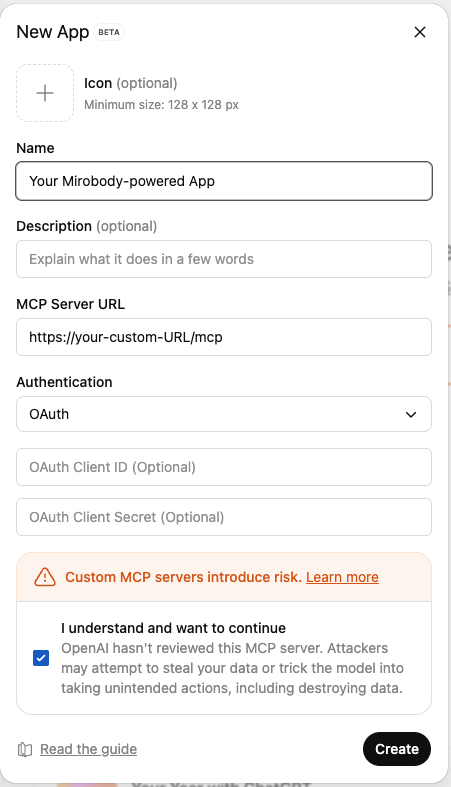
- Name your app: e.g. “Mirobody”
- Add MCP endpoint: your
MCP_PUBLIC_URLplus/mcp(e.g.https://abc123.ngrok.io/mcp) - Description (optional): describe what your app does
- Test connection: ChatGPT validates connectivity and discovers tools
Authenticate via OAuth
On first call ChatGPT redirects you to Mirobody’s built-in OAuth login. Sign in once and the token is reused for the rest of the ChatGPT session.
Start using your app
The connected ChatGPT session can now:
- Retrieve health profiles and time-series data
- Query data from connected providers (Garmin, Whoop, Oura, Renpho, Apple/Google Health, EHR)
- Call any custom tool you registered in
tools/ - Activate any Skill from
skills/ - Read resources exposed at
resources/
Your ChatGPT App is now wired to Mirobody.
Available Capabilities
Once connected, ChatGPT has access to:Health Profile
Comprehensive user health context and connected device info
Time-Series Queries
400+ standardized indicators with FHIR/LOINC/SNOMED CT cross-vocabulary search
Custom Tools
Anything you registered under
tools/Skills
Claude Agent Skills auto-discovered from
skills/MCP Resources
Static and dynamic resources via
resources/Sandbox Execution
The
execute tool runs Python / shell inside an E2B sandboxExample Use Cases
ChatGPT can synthesize across devices, records, and uploaded files. Real-world examples:Quick Queries
For simple questions, you can ask:Advanced Analysis: Diabetes Management
Prompt: “Summarize the history and recent progress of my diabetes. Use Theta to find data from devices, records, and other relevant sources.”View Full Conversation
See the complete diabetes analysis conversation
Interactive Chart
Explore the interactive glucose trend visualization
Advanced Analysis: Pain Pattern Recognition
Prompt: “Help me understand the whole picture and the progress of my knee pain. Use all relevant data and find potential drivers. Use visual illustrations if it’s helpful.”View Full Analysis
See how ChatGPT analyzes complex pain patterns with multi-source data
Security Considerations
OAuth is built in. Anyone calling the MCP endpoint must complete Mirobody’s OAuth flow first, so even a leaked URL can’t be used without a valid session.
Troubleshooting
Connection failed
- Verify your tunnel / domain is reachable:
curl -I https://<MCP_PUBLIC_URL>/mcp - Confirm Mirobody is bound to
0.0.0.0:18080inside its container - Confirm
MCP_PUBLIC_URLmatches the URL you’re giving ChatGPT - Restart Mirobody after editing the config — it’s only re-read on startup
Tools not appearing
- Hit
/mcpdirectly withtools/listand confirm tools are returned - Check Mirobody logs for tool-loading errors at startup
- Make sure your files in
tools/follow the docstring convention (see Adding Tools) - Drop
--no-cacheand rebuild if you changedmirobody/pub/tools/and don’t see updates